

The Kindle bookstore app is a free reading app that lets you browse, buy, download and read eBooks on a phone, tablet or computer, with no Kindle e-reader required. According to About Amazon’s Kindle app guide, the app is free and available for iPhone, Android, iPad, Fire tablets, PC and Mac. This guide explains how to install it, where you can actually purchase books, how to download and organize your library, and how to set up the reading view so long sessions stay comfortable.
What the Kindle App Does and Does Not Do
The Kindle app is first and foremost a reader, and its store features vary by device. It displays books you own, syncs your place across devices through your Amazon account, and stores titles for offline reading.
Where you can buy is the part that confuses many readers. On some platforms, particularly Apple devices, in-app purchasing has historically been limited, so readers often buy through a web browser and then open the book in the app. The practical takeaway is simple: purchase in a browser if the in-app store button is missing, then let the book sync to your device.
Here is what you can expect the app to handle:
- Reading Kindle-format eBooks with adjustable text, themes and layouts
- Syncing your last page read, highlights and bookmarks across devices
- Downloading titles for offline reading on flights and commutes
- Organizing books into collections
- Sending in your own documents on supported setups
What it generally does not do is open files sold in other formats. EPUB files bought from independent stores are not natively readable in the Kindle app without conversion or a send-to-Kindle workflow, which is covered further below.
How to Install the Kindle App on Any Device
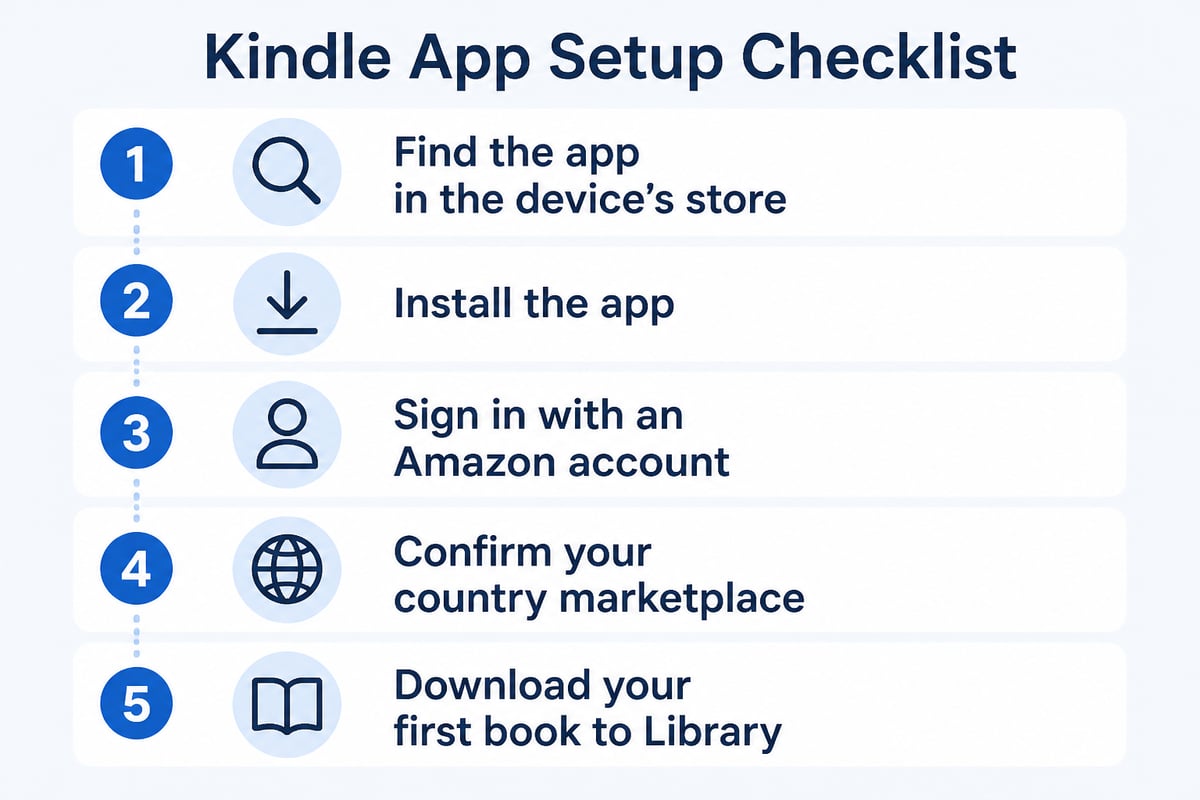
Installation takes only a few minutes on every supported platform. Search for the app in your device's official store, install it, and sign in with an Amazon account.
- Phone or tablet: Open the App Store (iPhone, iPad) or Google Play (Android) and search for "Amazon Kindle."
- Fire tablet: The Kindle app comes built in, so you only need to sign in.
- Windows or Mac: Download the desktop app from Amazon's site and run the installer.
- Sign in: Use your existing Amazon login. A new account is free to create.
- Choose your marketplace: Make sure your account's country setting matches where you want to shop, since catalog and pricing differ by region.
Once you are signed in, your existing purchases appear in the Library tab. Tap a cover to download it, and the app opens the book at your last synced page.
Buying Books for the Kindle Bookstore App
The simplest way to buy for the Kindle bookstore app is through Amazon's store, but it is not the only route, and comparing prices before checkout can save real money. Buying on Amazon places the title directly in your library the moment payment clears. From there it syncs to every device you have signed in.
For readers who want a longer walkthrough of purchasing options, Tell eBook's guide to buying eBooks for Kindle covers the formats and delivery methods in more detail. If you want to understand how the retailer's catalog is organized, The Kindle Store explains how browsing and categories work.
A few habits make buying smoother:
- Sample first. Most listings offer a free sample of the opening chapters. Download it to check pacing, formatting and writing quality before committing.
- Check the format. Look for notes about enhanced typesetting, fixed layout or image-heavy content, especially for comics and art books.
- Read the product details. Page count, publisher and file size help you set expectations.
- Watch the wish list. Adding titles to a wish list lets you track price changes over time.
Biography and business titles are a good starting category if you are building a library from scratch. A title such as Steve Jobs and Tim Cook: The Core of Apple shows how a business narrative reads on a small screen, and a memoir like Mapplethorpe: A Biography is a useful test of how well photo-adjacent text reflows on your device.
Downloading, Navigating and Managing Your Library
Downloading a book is a single tap in the Library tab, and the app keeps it stored locally so it opens without a connection. Titles you have purchased but not downloaded show a cloud icon, while downloaded ones display a check mark or a progress bar.
Finding your way around
The main screens are consistent across devices, though their labels shift slightly:
| Screen | What it holds | Best use |
|---|---|---|
| Library | Every book you own | Opening or downloading titles |
| Home | Recently opened and recommended books | Picking up where you left off |
| Store or browser link | Shopping and samples | Finding new books |
| Collections | Custom groupings you create | Sorting by topic or project |
Collections are underrated. If you read across genres, sorting titles into groups such as "Work," "To Read" and "Fiction" keeps a growing library manageable. Long-press a title or open its menu to add it to a collection.
Keeping storage under control
Downloaded books take up space, particularly image-rich ones. Removing a download from your device does not delete the purchase, because it remains in your cloud library and can be fetched again whenever you want it.
Customizing the Reading Experience
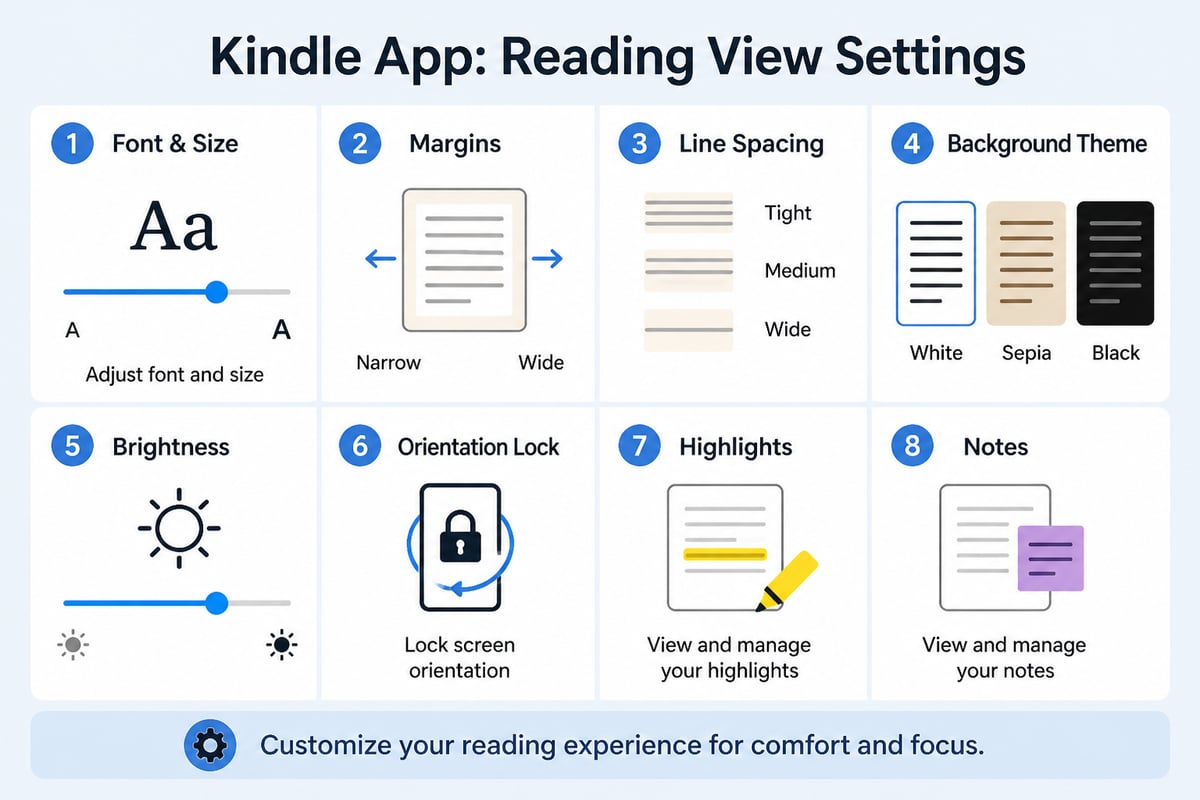
The reading view is where the app earns its keep, and a few adjustments make a visible difference to comfort. Tap the center of the page, then open the display settings, usually shown as "Aa."
- Font and size: Pick a typeface that suits your eyes. A larger size reduces strain on a phone screen.
- Margins and spacing: Wider margins and more line spacing help dense nonfiction read more easily.
- Themes: White, black, sepia and green backgrounds let you match lighting conditions. Dark mode is gentler at night.
- Brightness: Lower it manually in dim rooms rather than relying on automatic settings.
- Orientation lock: Lock the screen if the page rotates when you lie down.
Highlights and notes deserve attention for study and business reading. Select a passage, choose a highlight color, and add a note if you want to remember why it mattered. Your annotations sync across devices, so a quote saved on your phone is searchable on your laptop.
Reading EPUB Files When the App Prefers Kindle Formats
If you buy from an independent store, the file format decides how easily it opens in the Kindle app. Amazon's own ecosystem is built around Kindle formats, while many independent retailers deliver EPUB, the open standard used by most other readers. This mismatch is the most common frustration for people who shop around.
There are three realistic options:
- Send to Kindle. Amazon provides a send-to-Kindle service that accepts personal documents and transfers them to your library. Current format support has changed over time, so check Amazon's help pages for the formats it accepts today.
- Convert the file. Free desktop tools can convert EPUB to a Kindle-readable format, though this works only on files without digital rights management restrictions.
- Use a second reading app. Many readers keep the Kindle app for Amazon purchases and a separate EPUB-friendly app for everything else.
Tell eBook's primer on the EPUB bookstore explains what the format is and what to expect from it. If you are weighing platforms before committing, the comparison of Kobo eReader vs Kindle lays out how the two ecosystems differ on formats, libraries and lock-in. Readers who prefer an open-format catalog may also look at the Kobo bookstore.
Keeping purchases in one format has a practical benefit. When your whole library lives in the same ecosystem, moving to a new phone or a different app costs you nothing, and no files need to be converted or re-imported.
Saving Money on Your Next eBook
Buying smart matters because eBook spending adds up quickly across a year of reading. A few tactics help without any special software.
Compare the same title across stores before you buy. Prices for identical books can differ meaningfully between retailers, and some independent stores discount bestsellers below the major platforms. Tell eBook's Discount eBooks collection offers bestselling titles at lower prices than major retailers, with instant EPUB and PDF download, which suits readers who are comfortable using a flexible reading app alongside Kindle.
Other ways to keep costs down:
- Use free samples to avoid paying for books you will not finish
- Borrow from your local library through its digital lending app where available
- Look for older backlist titles, which are often cheaper than new releases
- Keep a wish list and buy when a price drops
- Pick up public domain classics, which are free to download
Readers in Canada should check regional availability and pricing, since catalogs and rules differ by country.
Troubleshooting Common Kindle App Problems
Most problems have quick fixes, and checking the basics first saves time. Work through these in order.
- A book will not download: Confirm your internet connection, then check that you are signed in to the same account used for the purchase.
- A purchase is missing: Check that your app is set to the correct country marketplace, since titles bought in one region may not appear in another.
- Sync is behind: Open the menu and choose the sync option, then wait a moment on a stable connection.
- Text looks cramped or oddly formatted: Reset the font and margin settings, or try a different theme.
- The app is slow or crashes: Update to the latest version, restart the device, and clear unused downloads to free storage.
- A file will not open: Check the format. A non-Kindle file may need conversion or a send-to-Kindle transfer.
If none of that works, signing out and back in often clears stubborn account issues, and reinstalling the app is a reliable last step because your purchases live in the cloud rather than on the device.
Choosing Books That Read Well on a Small Screen
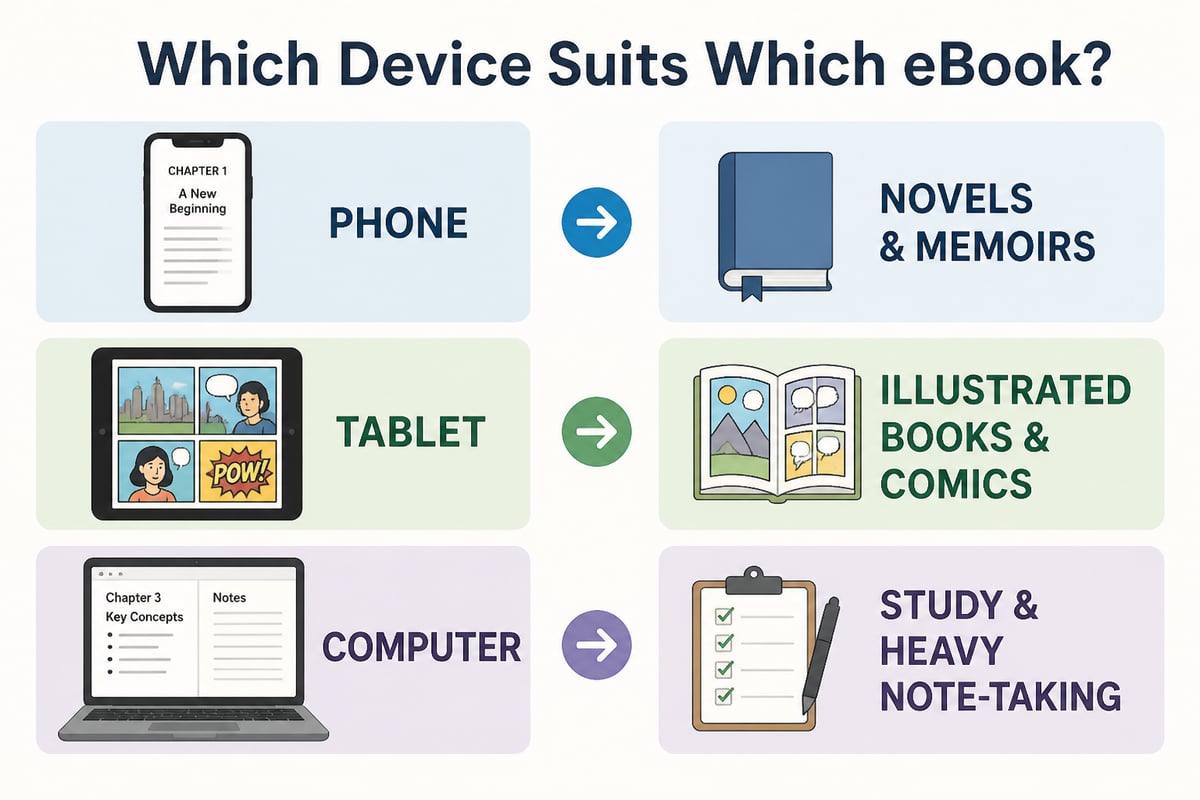
Not every title suits a phone or tablet equally, and choosing with the screen in mind improves the experience. Text-driven books such as novels, memoirs and business narratives reflow cleanly and adapt to any size. Illustrated or fixed-layout books, including art monographs and comics, depend on screen size and benefit from a tablet or computer.
Memoirs and personal stories tend to work well for commuting because chapters are short and the narrative is easy to pick back up. For example, Drawing Blood by Molly Crabapple pairs a strong narrative voice with illustration-related themes, while a self-development title like 10% Happier, 10th Anniversary Edition suits short sessions where you read a few pages at a time.
Frequently Asked Questions
Do I need a Kindle device to use the app?
No. The Kindle app is free and works on iPhone, Android, iPad, Fire tablets, PC and Mac, as About Amazon confirms, so a dedicated e-reader is optional.
Can I read without an internet connection?
Yes, once a book is downloaded. The app stores it locally, and your progress syncs the next time you connect.
Will my notes and bookmarks follow me between devices?
Yes. Highlights, notes, bookmarks and your last page read sync through your Amazon account across every signed-in device.
Can I read books bought from other stores?
Only if the file is in a supported format or has been converted or sent through Amazon's personal document service. Otherwise, use a separate EPUB-compatible reading app.
Is it better to buy inside the app or in a browser?
It depends on your device. If the in-app store is unavailable, buy in a browser and the title will appear in your library automatically.
Start by opening the Kindle app on your phone today, downloading one free sample, and adjusting the font and theme until the page feels comfortable to read. When you are ready to build a library at a better price, Tell eBook offers a wide selection of eBooks and audiobooks across fiction, business, comics and biographies, so you can compare before you buy. Browse the full catalog at Tell eBook and find your next read.