

The Amazon.com Kindle Store is Amazon's digital bookstore, where you browse, buy and download eBooks to read on a Kindle e-reader or in the free Kindle app. If you searched for amazon com kindlestore, the short version is this: you reach it from the Kindle Store link on Amazon's website or from the store icon on your Kindle, you buy with a 1-Click purchase, and the book arrives on your device within moments. This guide explains each step, what to do when a purchase fails, and how to decide where to build your library.
What Is the Amazon.com Kindle Store?
The Kindle Store is the section of Amazon's retail site devoted to digital reading material, including eBooks, magazines and audiobooks. It sits inside Amazon rather than apart from it, so one account, one payment method and one set of order records cover both physical goods and digital titles.
The catalog is organized much like a physical bookshop. You can browse by genre, such as fiction, business, biography, history and comics, or you can search by title, author or ISBN. Each book has its own detail page with a description, sample, customer reviews, file details and the price.
Two features shape how most people use the store:
- Sample chapters. Most listings let you send a free sample to your device before you pay, which helps when you are choosing between several titles on the same subject.
- Kindle format. Books bought there are delivered in Amazon's own format, which is tied to the Kindle ecosystem of devices and apps.
That second point matters more than it first appears, and it comes up again below when we compare formats.
Is the Kindle Store the Same as Amazon?
The Kindle Store is part of Amazon but is not the whole of it. Amazon is the broad marketplace that sells physical products, streaming media, groceries and much more, while the Kindle Store is its digital reading department with its own catalog, formats and rules.
In practice the difference shows up in three places. Physical books ship to your address and can be returned or resold, whereas Kindle eBooks are delivered electronically and licensed for reading within Amazon's system. Prices for the same title often differ between the print and digital listings. And the Kindle Store has its own navigation, with categories such as Kindle eBooks, Kindle Unlimited and Prime Reading sitting alongside the standard retail menus.
If you want a printed copy shipped to your door, that is a different purchase path entirely, and it is not what an eBook store such as Tell eBook offers. Digital readers, however, will find the distinction useful when comparing where to spend their money.
How Do I Get to My Kindle Store?
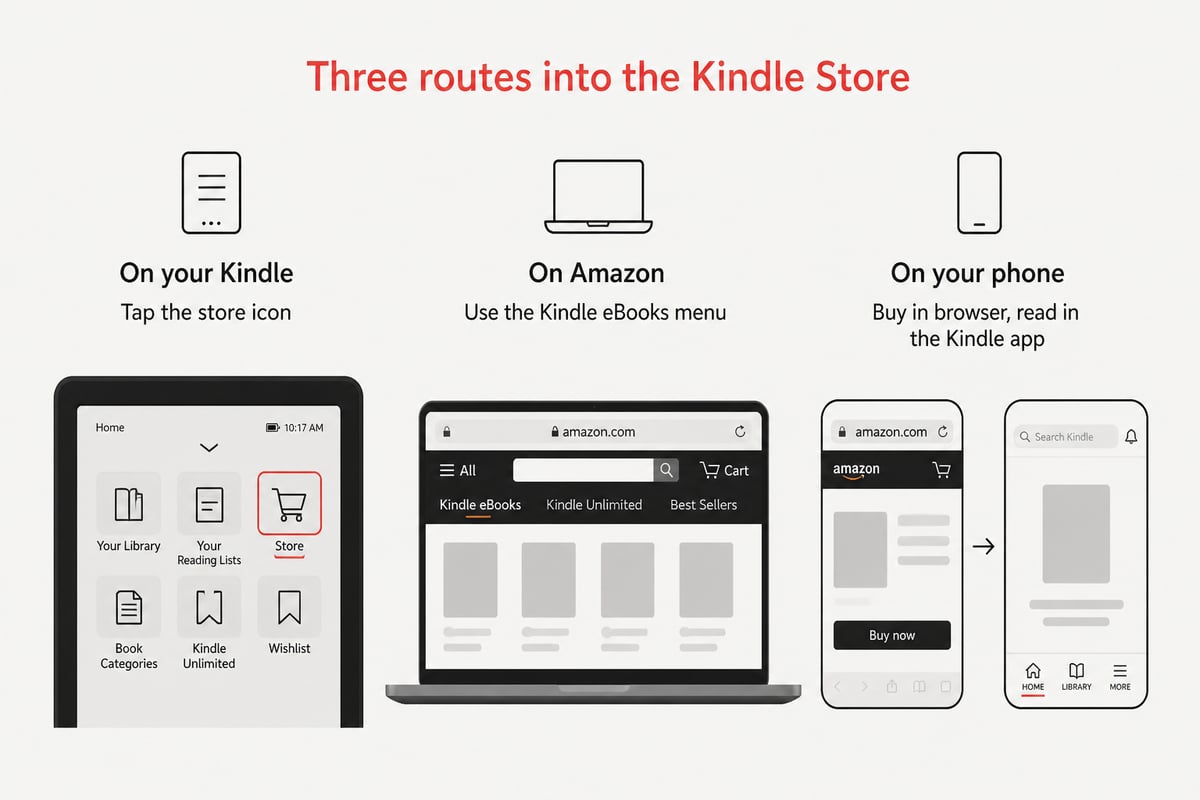
You get to your Kindle Store by opening the shop icon on your Kindle e-reader's home screen or by visiting the Kindle eBooks section of Amazon's website in a browser while signed in to your account.
The route depends on your device:
- On a Kindle e-reader: Connect to Wi-Fi, go to the home screen and tap the shopping cart or store icon. Search or browse from there.
- In a web browser: Sign in to Amazon, open the department menu and choose Kindle Store, then Kindle eBooks.
- On a phone or tablet: Many users buy through the mobile browser and then open the Kindle app to download. Amazon's own step-by-step walkthrough, how to buy Kindle books on an e-reader or through a browser, covers both paths in detail.
One practical note: make sure the country setting on your Amazon account matches your billing address. A mismatch is a common reason why the store appears empty or refuses a payment.
How Can I Purchase Kindle Books from Amazon?
You can purchase Kindle books by opening a title's detail page, confirming that the Kindle edition is selected, and choosing Buy now with 1-Click or adding it to your cart, after which the book is delivered to the device you pick.
Here is the sequence in order:
- Search for the title, author or ISBN.
- Open the listing and check that the format shown is Kindle Edition, not paperback or hardcover.
- Read the sample if you are unsure, then check the price and file details.
- Choose your delivery device from the dropdown if you own more than one.
- Complete the purchase with your default payment method.
- Open the book from your library once it syncs.
Always confirm the format before you pay. Print and digital editions often appear on the same page, and selecting the wrong tab is a frequent source of buyer's remorse.
Checking the Price Before You Buy
Digital prices vary by publisher, and they can change without notice. Compare the Kindle price against the print price on the same page, and note whether a title is included in a subscription program you already pay for. Because eBook pricing is set by publishers and retailers rather than by a fixed rule, a few minutes of comparison can save real money on a large reference library.
Why Can't I Purchase a Kindle Book on My Amazon App?
You usually cannot buy a Kindle book in the Amazon app because of platform rules that restrict in-app eBook purchasing on some mobile devices, so the fix is to buy through the website in a browser and then download the book in the Kindle app.
Several other causes can also block a purchase:
- Account region mismatch. The country on your account does not match your payment address.
- Payment problems. An expired card, a failed authorization or an unverified billing address will stop the order.
- Content restrictions. Some titles are unavailable in certain regions because of publishing rights.
- Parental or purchase controls. A restriction on the account or device may require a PIN.
- Sync delays. The purchase succeeded, but the book has not yet appeared on the device.
Work through them in that order. Check the payment method first, then the account country, then try the purchase in a desktop or mobile browser. If the order shows in your order history but the book is missing, force a sync from the device settings and confirm that the correct device is selected for delivery.
The Kindle Format and What It Means for Your Library
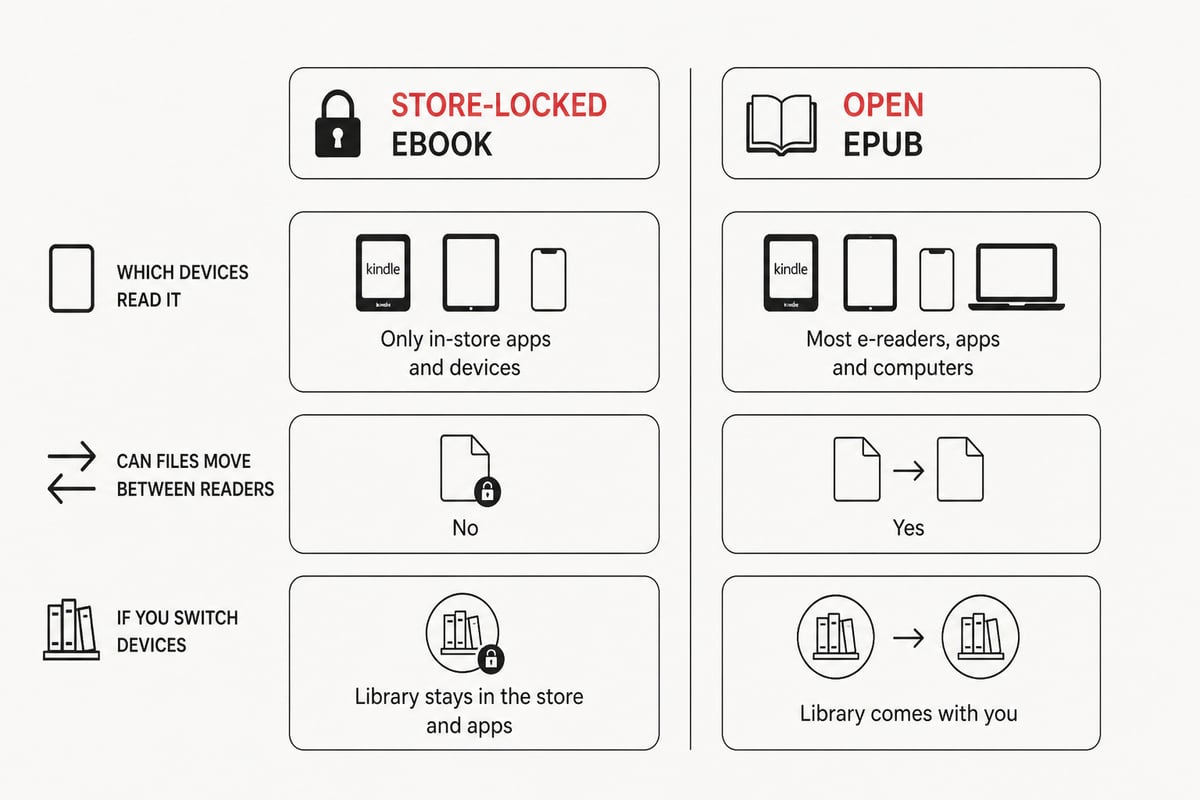
Books bought in the Kindle Store are delivered in Amazon's own eBook formats, which are designed to be read on Kindle devices and in Amazon's apps, rather than as open files you can move freely between any reader.
For most casual buyers, this never causes a problem. It becomes relevant when your reading habits change. Perhaps you buy a Kobo or Nook later, share a reading tablet with a family member, or want a copy that does not depend on one company's app and account. A library built entirely in a single proprietary format is convenient, but it ties your collection to that ecosystem.
Open formats work differently. EPUB is the widely adopted open standard for eBooks, supported by a broad range of e-readers, phones and tablets. Tell eBook offers its titles in EPUB and PDF formats, and the files are instantly downloadable so you can keep them once you buy them. If portability matters to you, our own explainer on buying eBooks outside the big retail ecosystems lays out the practical trade-offs.
Comparing eBook Buying Options
Choosing where to buy depends on which device you read on, how much you spend each year and how much you value owning portable files. The table below compares the two approaches on the attributes buyers ask about most.
| Attribute | Amazon Kindle Store | Tell eBook |
|---|---|---|
| Typical file format | Amazon's Kindle formats | Open EPUB |
| Works on Kobo and Nook | Not directly | Yes (EPUB) |
| Delivery | Wireless to Kindle devices and apps | Instant download |
| Audiobooks | Available through a separate service | Offered alongside eBooks |
| Keep after purchase | Licensed within Amazon's ecosystem | Download files to keep |
For students and self-learners building a reference shelf in history, business and biography, the ability to keep files in an open format is a practical advantage, because a library you plan to use for years should not depend on one app staying the same.
Finding Lower Prices on eBooks and Audiobooks
The most reliable way to lower what you spend on eBooks is to compare prices across stores before each purchase and to buy from retailers that discount bestsellers consistently.
A few habits help regardless of where you shop:
- Check the sample first so you never pay for a book that does not suit you.
- Wait for price changes on non-urgent titles, since digital prices move.
- Buy by category in batches when building a reference library, such as a run of biographies or business classics.
- Prefer files you can keep so that a purchase never has to be repeated if you change devices.
If lower prices are the priority, Tell eBook's Discount eBooks collection offers bestselling titles below major-retailer prices, with instant EPUB and PDF download. Readers who like biographies might start with titles such as Zig: The Autobiography of Zig Ziglar, while art and history enthusiasts can browse Dorothea Lange: A Life Beyond Limits or You Must Change Your Life.
Building a Reference Library That Lasts
A good digital reference library depends on three decisions made early: the format, the organization and the backup plan.
Start with format, since it determines which devices can open your books years from now. Open EPUB files are the safest choice for long-term collections. Next, organize by subject rather than by purchase date. A student working through history and biography benefits from folders or collections named for the topic, such as World History, Business Strategy or Artist Biographies, so that a title is easy to find when a research question arises.
Finally, keep a local backup of every file you own. Downloaded EPUB files can be stored on a computer and an external drive, which protects your collection if an account is closed or a service changes its terms. This is the quiet advantage of owning files outright: your library does not disappear when a subscription lapses or an app is retired.
Titles that reward this kind of long-term shelf include Magician of the Modern for readers of cultural history and A Life of Picasso III: The Triumphant Years for those who collect serious biography.
Tips for Using Any eBook Store Safely
Whichever store you use, a few safeguards protect your account and your money. Use a unique password and enable two-step verification. Review the format and price on every listing before you confirm a purchase. Read the refund and return terms of the store before buying, since digital goods are often treated differently from physical ones. And check your order history after each purchase to confirm that the right book was delivered to the right device.
When a store's terms matter to a specific purchase, such as a refund window or device limits, consult that store's own help pages or contact page rather than relying on assumptions. Policies differ between retailers and change over time.
FAQ
Can I read Kindle Store books without owning a Kindle?
Yes. Amazon offers free Kindle apps for phones, tablets and computers, so you can read purchased eBooks without owning an e-reader. You sign in with the same Amazon account used to buy the book.
Can I move Kindle Store books to a Kobo or Nook?
Not directly, because Kindle books use Amazon's own formats and are managed within its ecosystem. If you plan to switch devices, buying titles in open EPUB format from the start avoids the problem.
How do I find the Kindle eBooks section on Amazon's website?
Sign in to Amazon, open the main department menu and choose Kindle Store, then Kindle eBooks. From there you can browse categories or search by title, author or ISBN.
Your next step is to open the eBook you are most likely to read this month, check that its file format will work on every device you own, and decide whether you want it as a portable file. If you do, browse bestsellers, biographies and audiobooks with instant download and open EPUB files at Tell eBook, where you can go to the shop and start building a library that stays yours.